
Sound familiar?
Every PC on board keeps its own time
The ship changes its clocks every day or two. Some PCs follow the domain controller, some were set by hand two contracts ago, and one still sits in a zone with daylight saving and jumps an hour on its own. The bridge log, the engine control room PC and the firewall no longer agree, the crew roster shows the wrong hour, and a security event at 03:12 on one PC is 03:15 on the next.
Then come the other rounds: changing the zone before arrival, finding out what the crew installed, removing what is not allowed. Usually done PC by PC, walking the decks.
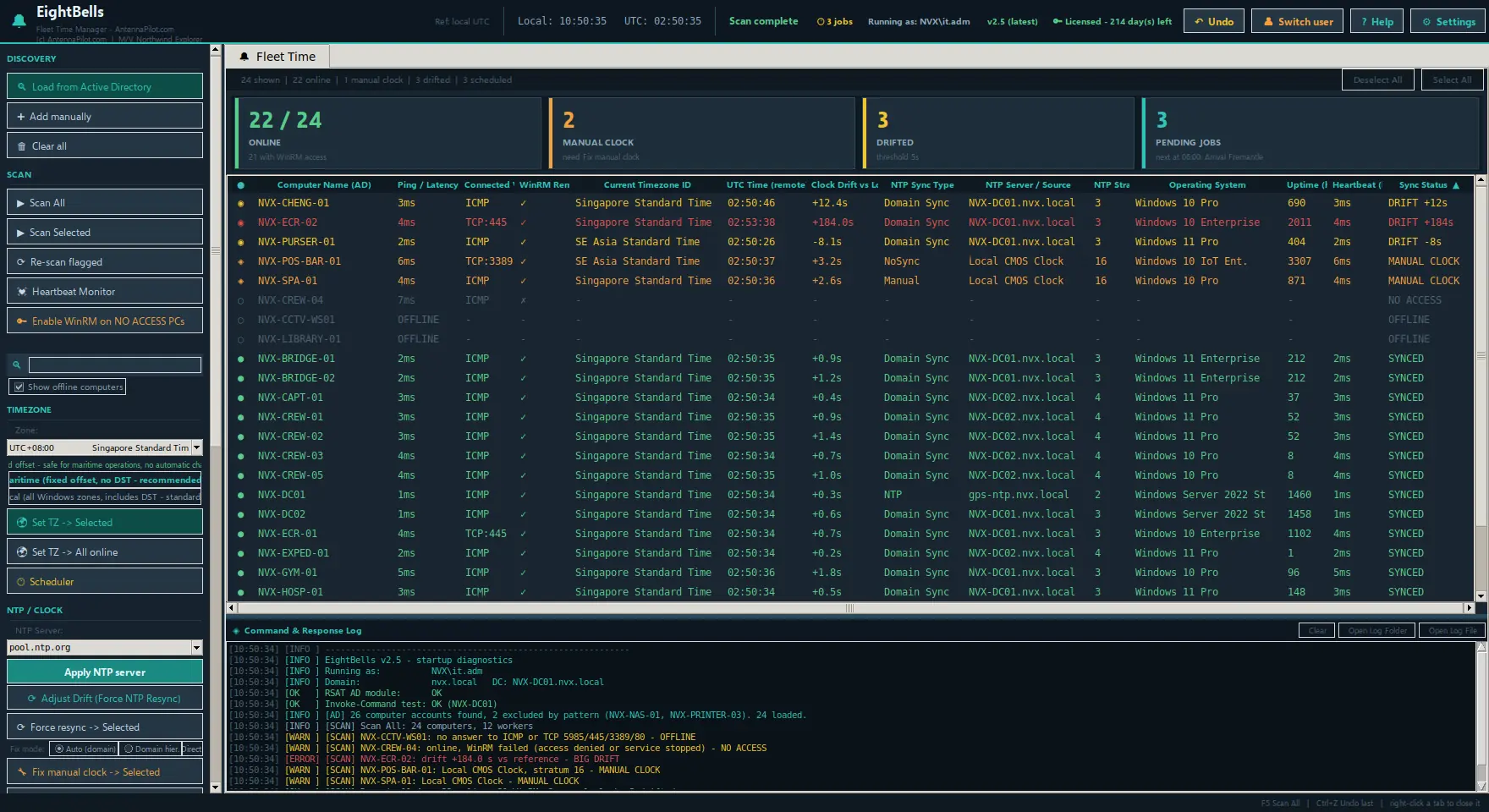
EightBells Fleet Time Manager does all of it from one administration PC. It reads the timezone, clock, drift and NTP status of every Windows PC in the ship’s Active Directory domain, sets the zone fleet-wide now or at a time you choose, repairs clocks that do not synchronise, keeps an inventory of installed software and removes what should not be there. Here, “fleet” means the fleet of computers on board.
How it works
One admin PC, the whole domain, no agents
- Run it on an administration PC with a domain account that is a local administrator on the target PCs.
- Load from Active Directory. Every enabled computer account is listed. NAS units, printers, switches, routers, access points, UPS and cameras are skipped by name pattern.
- Scan All. Ping, with a TCP fallback when ICMP is blocked, then a WinRM test, then the timezone, UTC clock, drift, NTP type, source, stratum, OS and uptime of each PC.
- Act on the selection or on every online PC. Each change asks for confirmation first and is recorded for Undo afterwards.
Everything goes through WinRM (PowerShell remoting), which is part of Windows. Nothing is installed on the target PCs.
Fleet time
One zone and one clock on every PC
Four cards at the top count the online PCs, the clocks that do not synchronise, the drifted clocks and the pending jobs; click a card to select those PCs. Drift is measured against a reference you choose: this PC, an NTP server or a value you type. Green is under 5 seconds, yellow 5 to 60, red over 60, and orange marks a PC that is not synchronising with anything.
- Maritime zone list: fixed-offset zones with no daylight saving, so a clock never jumps by itself. A political list with every Windows zone is there for office use.
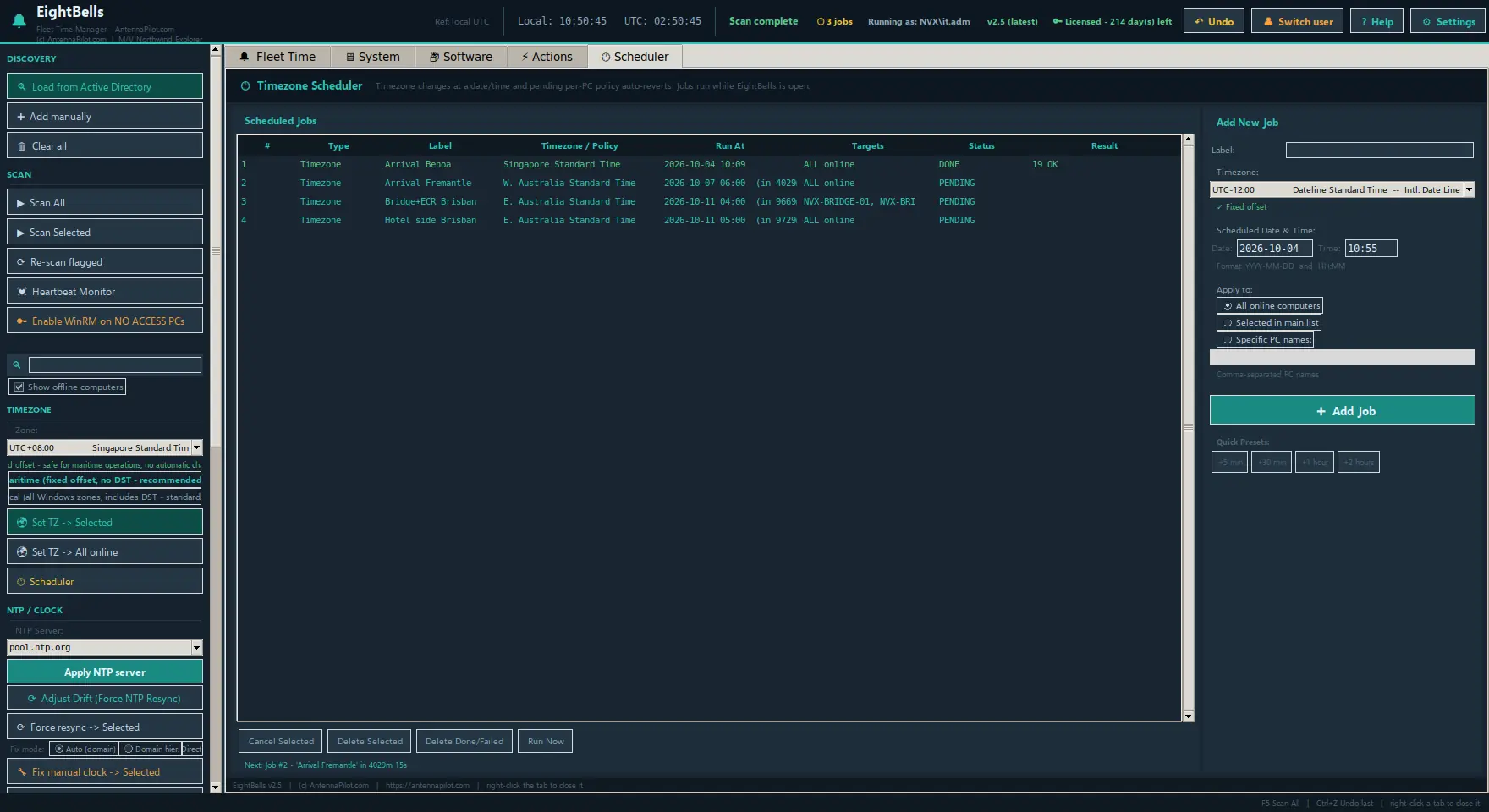
- Set the zone on the selected PCs or on every online PC, immediately or at a date and time from the Scheduler.
- Fix manual clock: in Auto (domain) mode the domain controller is pointed to the external time source and every other PC to the domain hierarchy, the correct layout in a domain. Domain hierarchy and Direct NTP modes are there for the exceptions.
- Force resync, push an NTP server to all accessible PCs, a heartbeat monitor that pings every 10 seconds and an automatic scan at an interval you set.
On a ship the usual setup is simple: the domain controller takes its time from the ship’s GPS/NTP source, every other PC follows the domain controller. EightBells shows at a glance which PCs do not, and puts them back.
Software
Find it on every PC. Remove it silently.
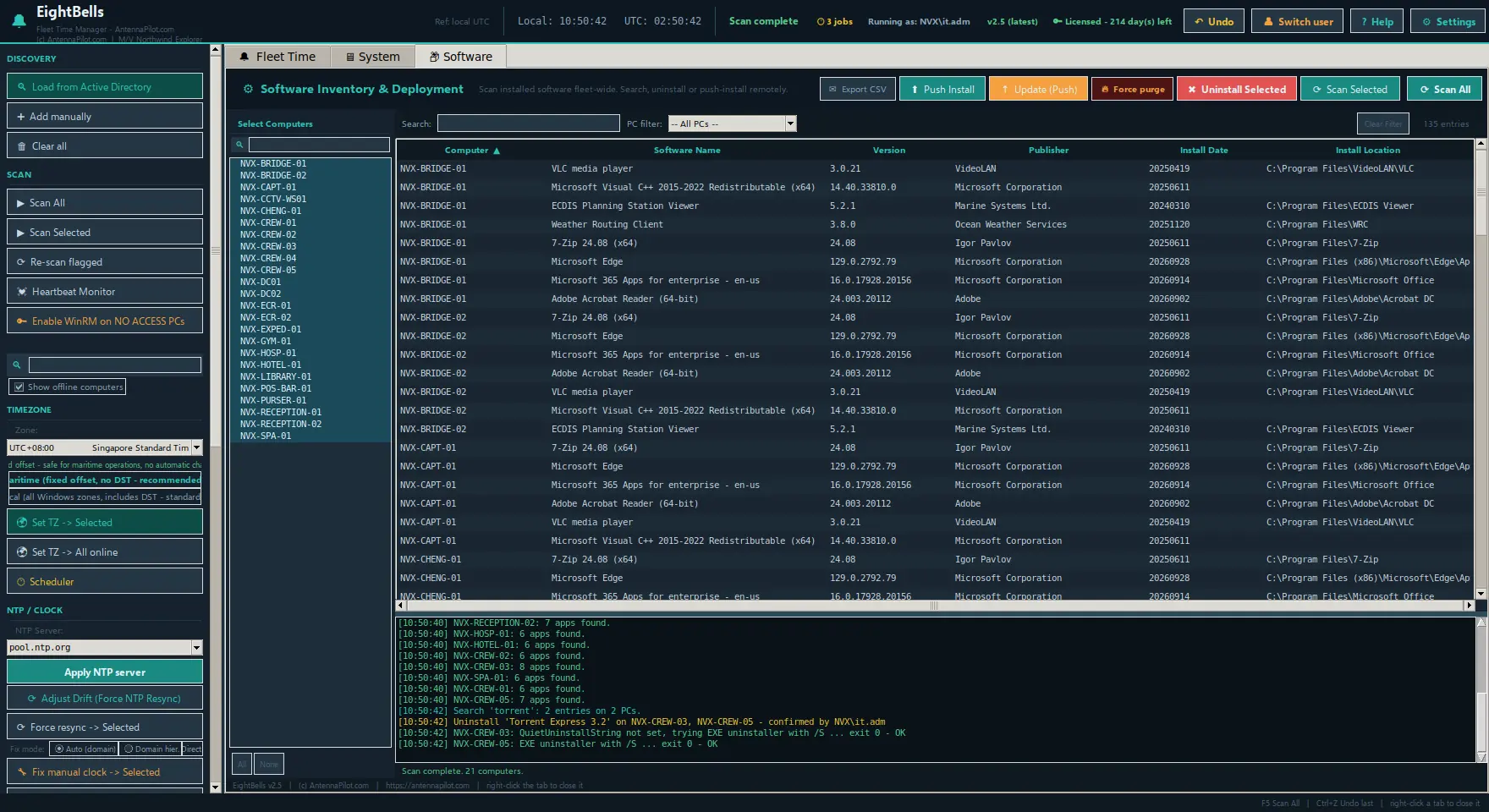
Software Inventory reads the installed programs from the registry of each PC (64-bit, 32-bit and per-user uninstall keys). It does not use Win32_Product, which can trigger MSI repairs. Search one name across the whole fleet, filter by PC, open the details of any entry with its uninstall commands.
Uninstall Selected removes a program silently, trying in order the quiet uninstall string, msiexec for MSI packages, the EXE uninstaller with the common silent switches, the original command and WMI. Leftovers without an uninstall string have their own path, up to a Force purge of the folder and registry entry. Push Install / Update copies an EXE or MSI from a network share to each PC, runs it silently and cleans up. Export the table to CSV for the audit.
Remote management
Nine modules, no remote desktop session
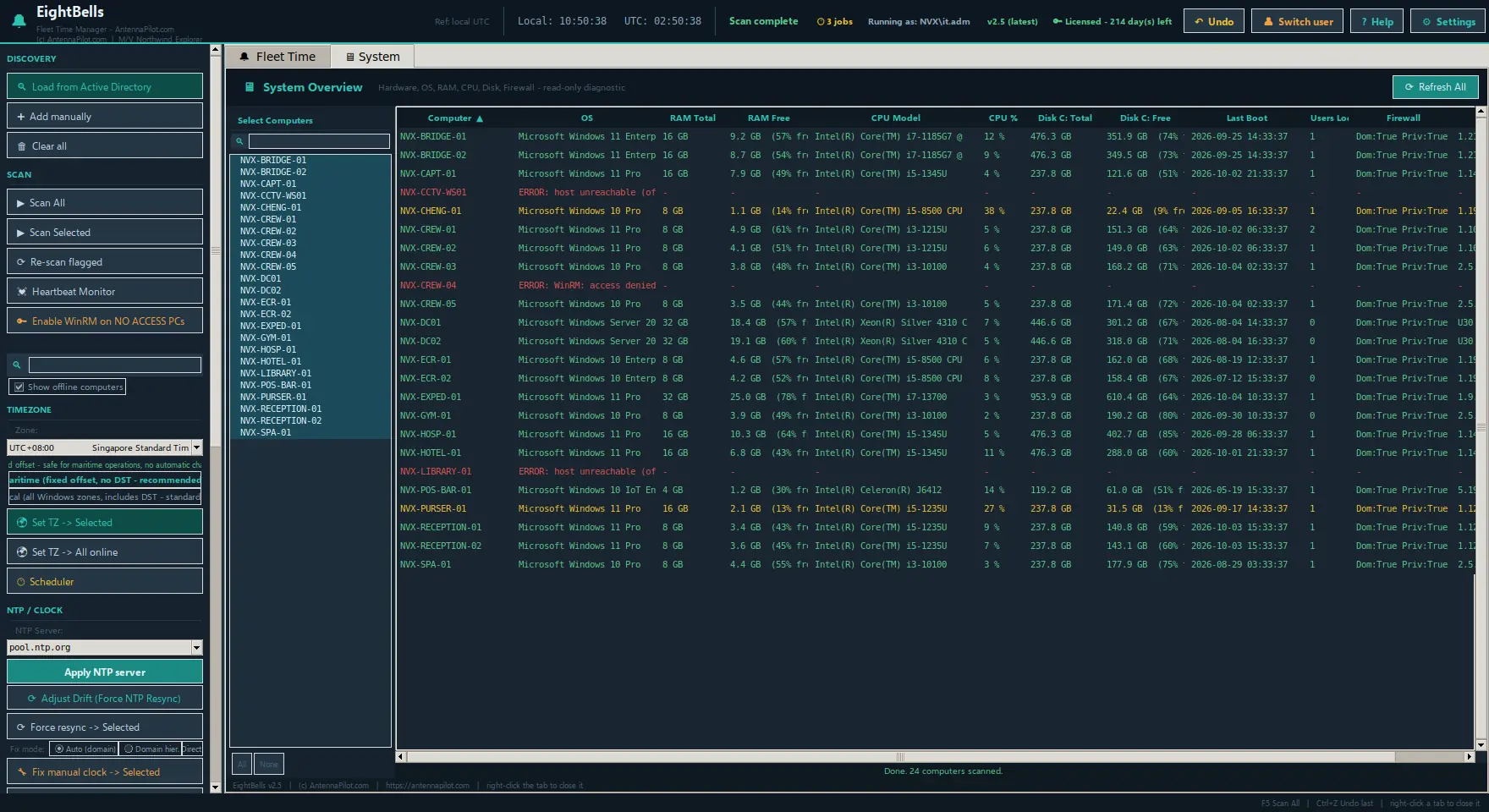
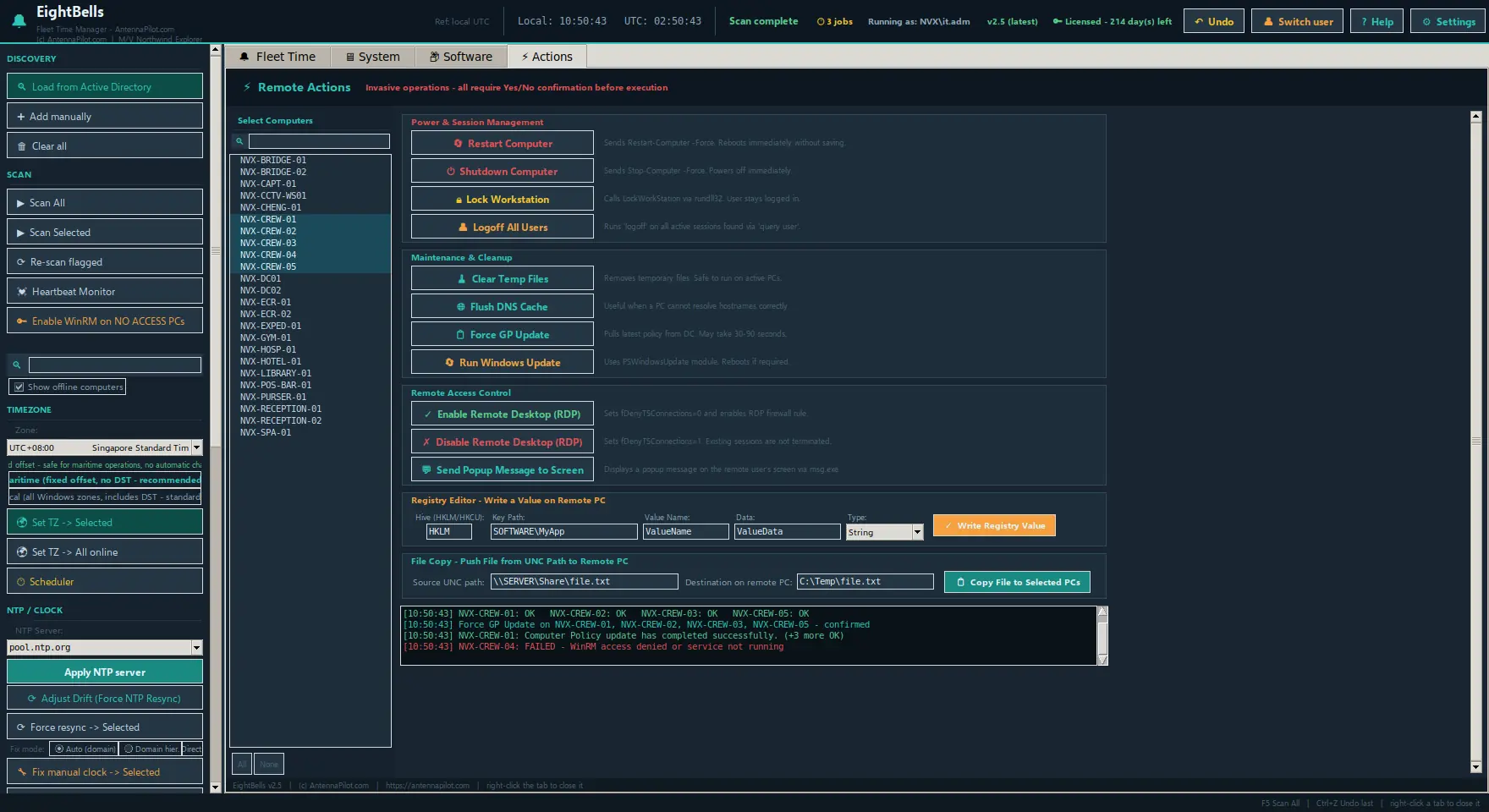
System Overview, Services, Software Inventory, Remote Actions, Network Info, Event Log Viewer, User Sessions, Process Manager and Printer Manager. Each one opens as a tab with its own computer selector, so the same check runs on one PC or on forty.
Safe by design
Confirm first, undo after
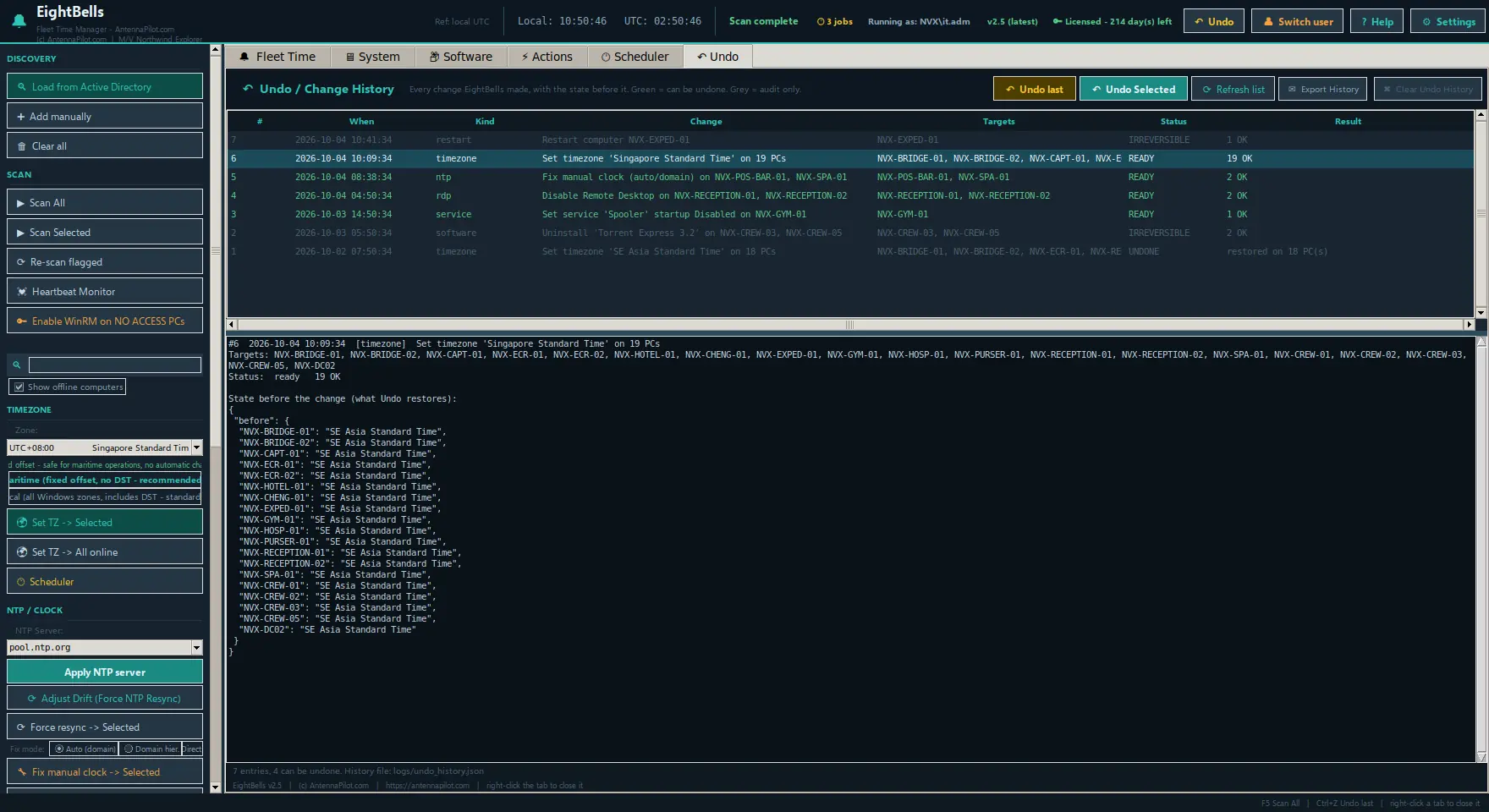
Every action that changes something on a PC shows the list of target PCs and waits for your confirmation. Changes to the timezone, time source, services, Remote Desktop and registry are recorded together with the state before the change. Undo last (Ctrl+Z) or Undo Selected puts that state back on every PC that was touched. Actions that cannot be reversed, such as an uninstall or a restart, stay in the list in grey for the audit trail. The history is kept on disk and survives a restart.
Built for ships
Inside the domain, offline, over satellite
There is no cloud service and no online account. EightBells works entirely inside the ship’s domain and keeps working when the satellite link is down. The only outside contacts are optional: a small version file on antennapilot.com and a confirmation of the demo.
- Switch user restarts EightBells under a dedicated admin account without logging off Windows. The password is never stored, and the top bar always shows which account is running.
- Enable WinRM on NO ACCESS PCs starts PowerShell remoting on PCs that answer but refuse WinRM, through WMI.
- Every command and its result go to the on-screen log and to a log file per session. Export the scan to JSON, or as an HTML fleet report for the office.
Try it on your domain for 24 hours. One installer, every function, no key needed. Then a free month in exchange for your feedback, and a licence bound to your admin PC. Get the download link or request a quote for one ship or the whole fleet.
FAQ
Questions IT officers ask
Do I have to install something on every PC?
No. EightBells uses WinRM, which is built into Windows. On the target PCs the Windows Remote Management service must be running and port 5985 open, which is easiest to set once through a Group Policy.
Does it work without internet?
Yes. Discovery, scanning and every change run inside the ship’s domain. Internet is only used, if available, for the update check and to confirm the demo.
Can I go back if I made a mistake?
Yes, for every reversible change: timezone, time source, services, Remote Desktop and registry values. Undo restores the recorded state on each PC.
Which account does it need?
A domain account that is a local administrator on the target PCs. EightBells does not need to run elevated. A dedicated admin account is recommended; Switch user starts EightBells under it without logging off.
Do scheduled timezone changes run when EightBells is closed?
No. Scheduled jobs run while EightBells is open on the admin PC. The top bar shows how many are pending, and EightBells asks before closing if any are still waiting.
What happens when the licence ends?
If the demo or a licence ends while EightBells is running, it switches to read-only: scanning and reading continue, changes to the PCs are blocked until a key is activated. At the next start, the licence window opens so you can activate a key.
EightBells Fleet Time Manager is independent software developed and owned by Razvan Malciu. Screenshots show fictional data.