
BackupPilot for Synology NAS is a Windows application that monitors one or more Synology NAS units through the DSM Web API. It works with DSM 6.2 and 7.x, from 2-bay units to rack models, and with mixed fleets. It is strictly read-only.
Backup sources
Detected automatically on each NAS
| Source | What counts as a confirmed backup |
|---|---|
| Hyper Backup | Last successful run of the task |
| Active Backup for Business | Last completed run of the task (PC, server, VM) |
| Snapshot Replication | Last run of the plan |
| Cloud Sync | Last synchronised change of the connection |
| Synology Drive ShareSync | Last synchronised change of the connection |
| Btrfs snapshots | Time of the newest snapshot of the shared folder |
| Watched folder | Time of the newest file inside a shared folder you choose: Veeam, Windows Server Backup, Acronis, robocopy, rsync or any other software that writes to the NAS. Shown as “Share freshness” on the dashboard. |
Only the sources that exist on each NAS are shown. A source found at a refresh is flagged as new until you give it a rule.
Backup monitors
One rule per source
- Every N hours or days: how often a backup must be confirmed. Deadlines are re-checked every minute, whatever the poll interval.
- Deadline (HH:MM), optional: the time of day by which the backup for the current period must exist.
- Channels: sound and / or e-mail, per source.
- The alarm clears by itself when a new backup is confirmed, and the history keeps the time it appeared and the time it cleared.
- Repeat reminder every N hours, escalation to a second address after N hours, acknowledge, and a maintenance window per NAS.
Smart backup validation
Every run is measured and judged against its own history
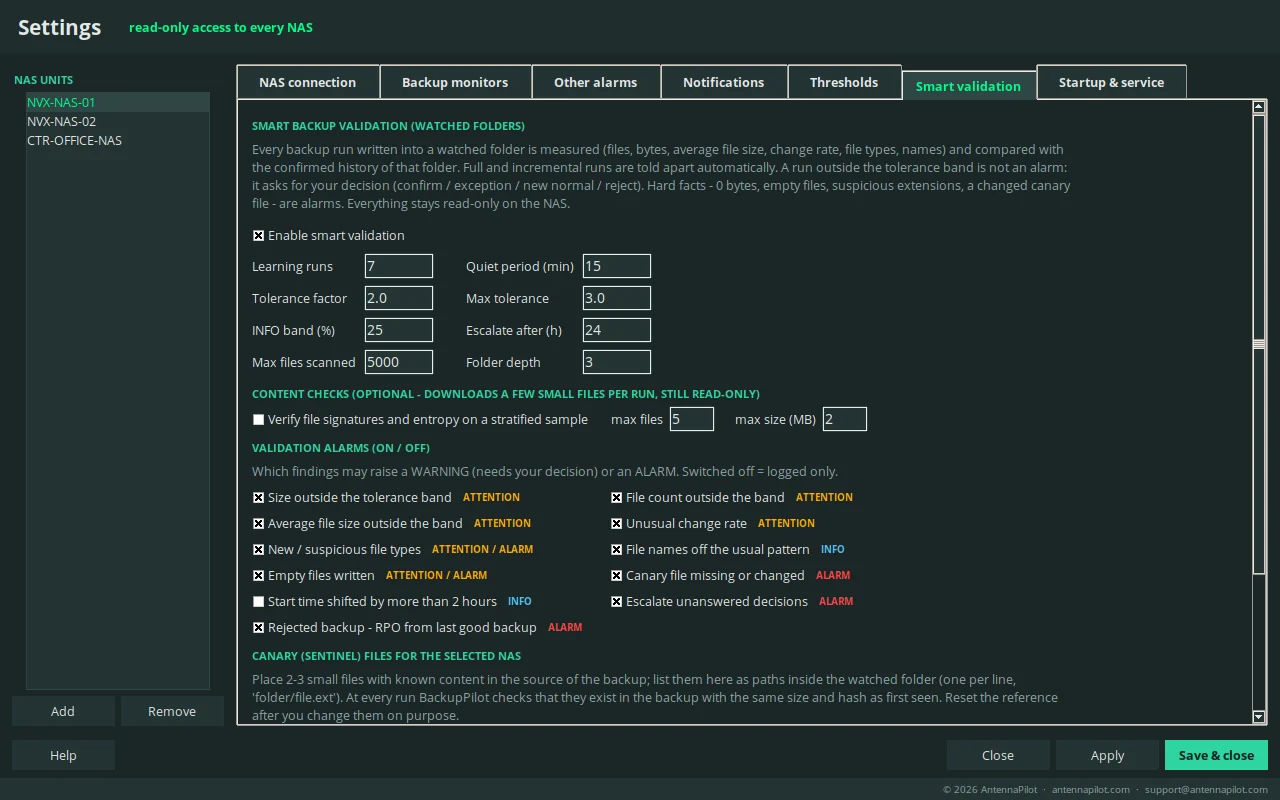
A run is the set of files written since the previous run, closed after a quiet period (15 minutes without changes by default). BackupPilot measures files, bytes, average file size, change rate, file types, name patterns, duration, start time and weekday or day of the month, and compares them with the confirmed runs of the same folder using the median and the MAD.
- Full and incremental runs are told apart automatically when the sizes fall into two groups, so a small incremental is not compared with a full backup.
- Same weekday is used as the reference when there are enough runs for it.
- Learning period: trend findings start after a number of completed runs (7 by default). Hard checks work from the first run.
- Tolerance band: median divided and multiplied by a factor (2.0 by default). Each confirmed exception widens it by 0.1, up to a ceiling (3.0 by default).
- Small deviations (under 25 % by default) are logged as INFO and never asked.
Decisions
The operator decides, the program keeps the record
A run outside the band is not an alarm. It waits in the Backup validation tab and asks for one of four decisions:
| Decision | Effect |
|---|---|
| Correct - normal | The backup is valid and typical. It joins the trend. |
| Correct - exception | Valid but unusual (a one-off big copy, a migration). It is not added to the trend and the tolerance widens slightly, capped. |
| Correct - new normal | Valid and the new reality (share moved, retention changed). The baseline restarts from this run. |
| Incorrect - not a valid backup | Excluded from the trend and kept for audit. The last good backup becomes the previous one, so the RPO clock moves back and a missed window raises an alarm. A comment is required. |
Every decision is stored with the Windows user name, the time and the comment. A run that waits for a decision longer than a set time (24 hours by default) turns from a warning into an alarm. For a planned migration or a re-full, Expected deviation (snooze) marks deviations as expected until a date; they are then logged as INFO.
Hard facts
Alarms, not questions
- A backup that wrote 0 bytes, or only empty files.
- Known ransomware extensions among the new files.
- Canary (sentinel) files: 2 or 3 small files with known content that you list per watched folder. At every run BackupPilot checks that they exist in the backup with the same size and hash as when first seen.
- Content checks, optional: on a small sample of the new files (the newest, the largest and a few small ones) the first bytes must match the file type, and text files with very high entropy are flagged as probably encrypted. A few small files are read per run through the same read-only API.
Every finding comes with the reason in words and, per source, a chart of the runs with the median and the tolerance band. The dashboard marks each watched folder with a badge: validated, minor deviation, needs your decision, hard fact, learning, writing, or off.
NAS health
Other alarms, per NAS, all off until you choose
| System | NAS unreachable or login failed, system temperature, DSM health, active DSM notifications, Security Advisor issues, DSM update available |
| Backup sources | A task reports an error (failed, broken, unauthorized, disconnected) |
| Volumes | Status not normal, usage above a threshold |
| Disks | Status or S.M.A.R.T. not normal, temperature above a threshold |
| Thresholds | Volume used %, disk temperature, system temperature, freshness hours: global, with editable defaults |
Dashboard
Every NAS on one screen
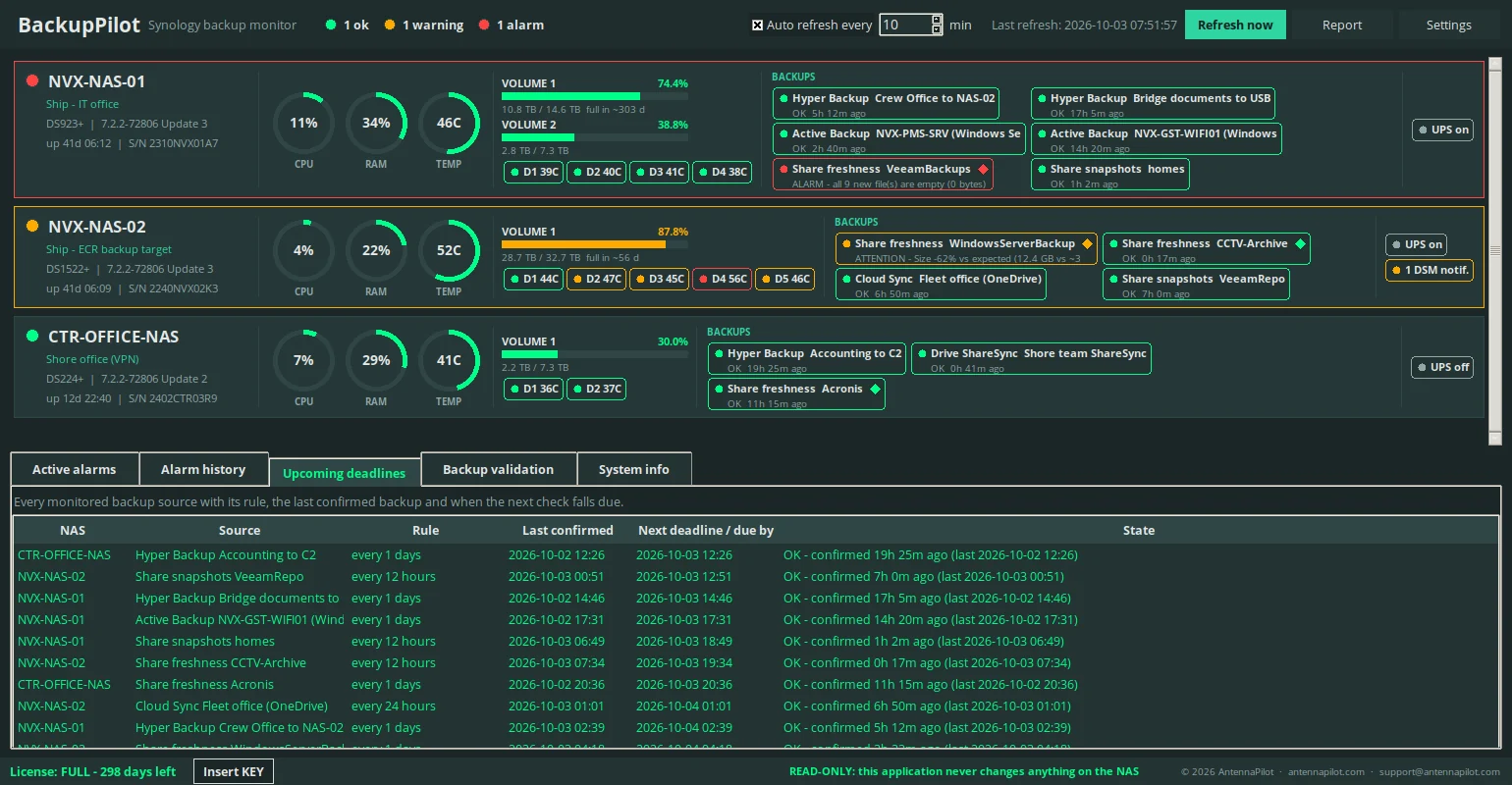
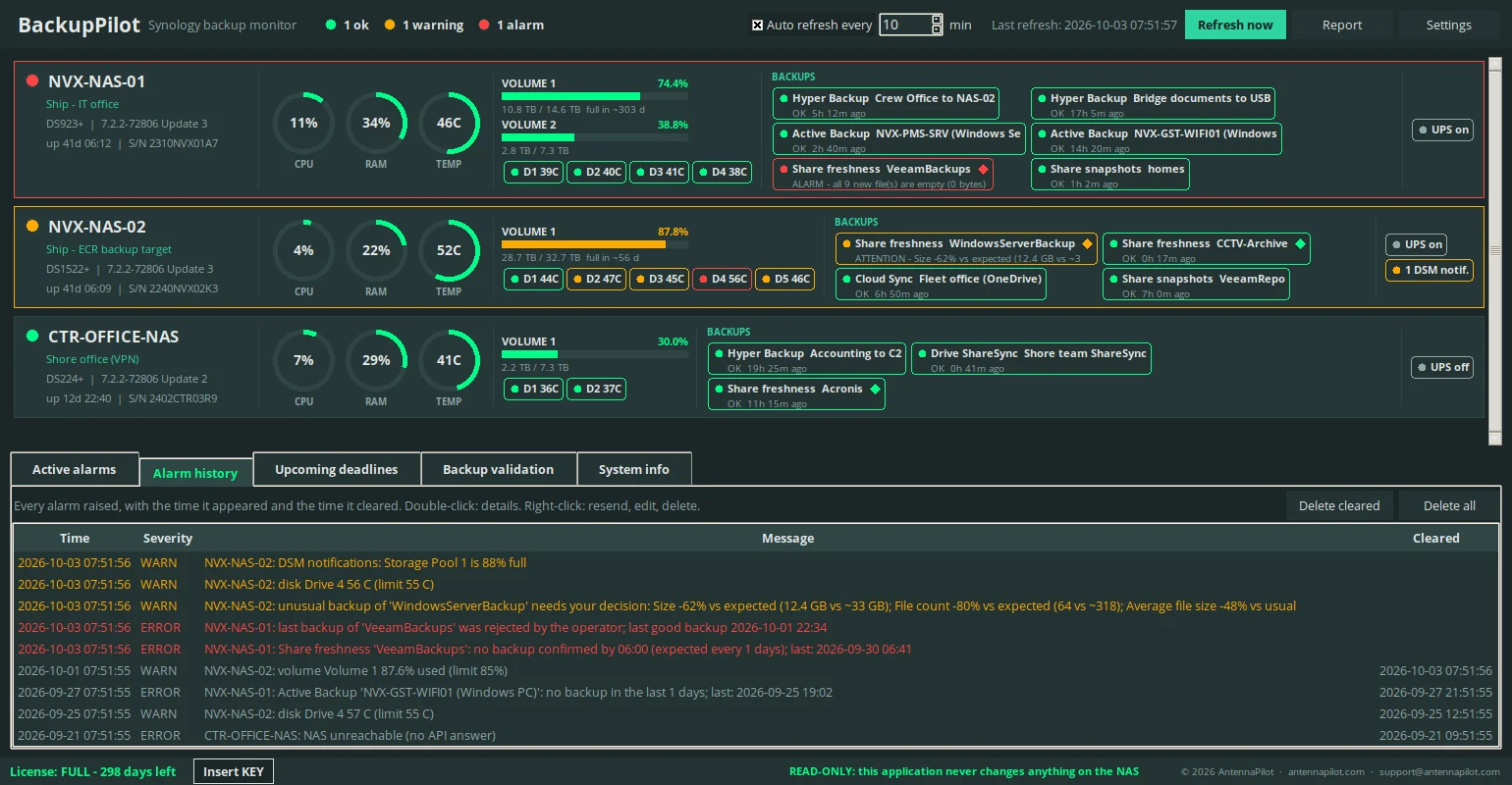
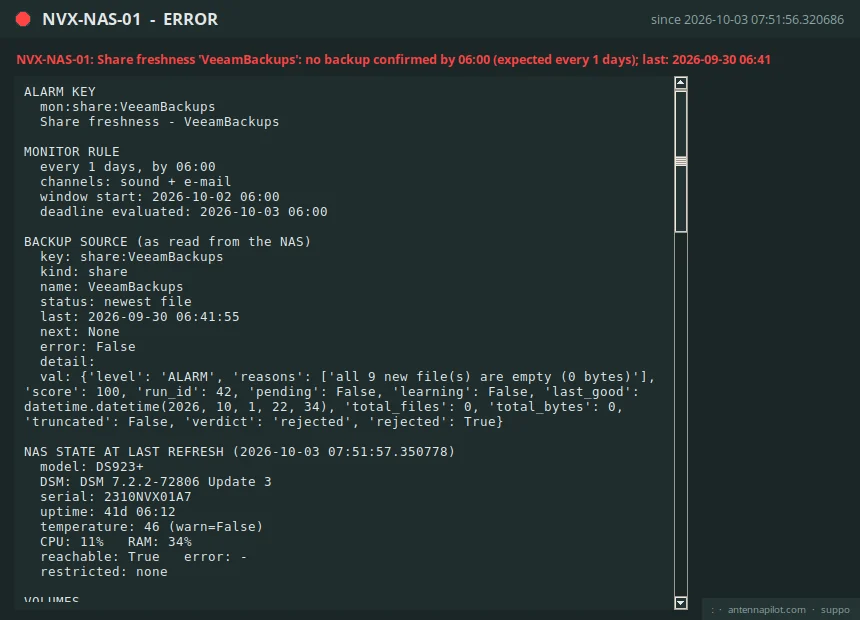
One card per NAS: status LED, model, DSM version, serial and uptime; gauges for CPU, RAM and temperature; one chip per backup source with its verdict and, for watched folders, the validation badge; a bar per volume and a chip per disk; UPS, USB disks and DSM notifications. Below, tabs for Active alarms, Alarm history, Upcoming deadlines, Backup validation and System info. Double-click an alarm for every detail; right-click to resend it, edit the rule or acknowledge it.
Notifications
Outlook or SMTP, your templates
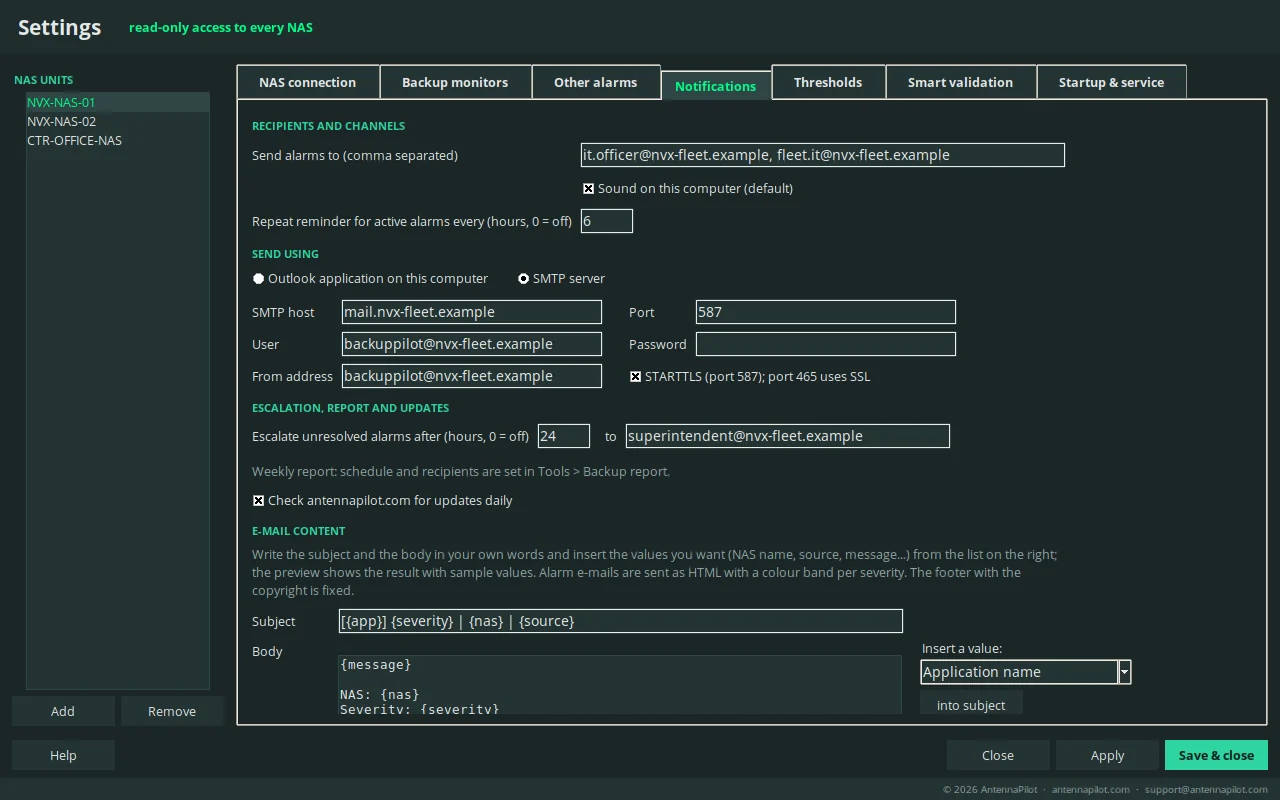
Alarms go out by Outlook (the profile on the PC) or by an SMTP server (587 STARTTLS or 465 SSL). Subject and body are templates; one alarm per e-mail, with a coloured banner by severity. A test button verifies the channel and shows any error.
Report and trends
Screen, PDF, print, weekly e-mail
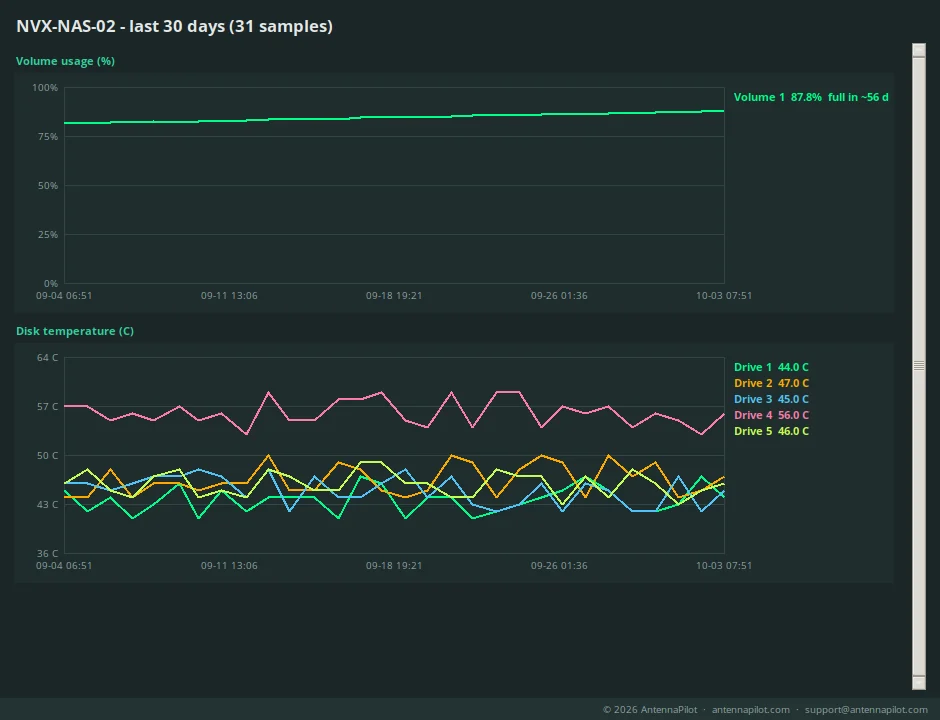
- Report on screen: KPI header and one card per NAS, with sources, rules, last confirmed backup, missed windows, validation findings, storage with a “full in ~N days” estimate, 30-day charts and disks with S.M.A.R.T.
- Export as PDF, print, send by e-mail with the PDF attached and an HTML summary with the alarms first, or schedule it weekly. One report per device or for all devices; the title and the organisation line are editable.
- A device without a backup rule is shown as “NO BACKUP MONITOR CONFIGURED”. The report never claims a backup is fine without a rule.
Running all the time
Desktop with tray, or a background job
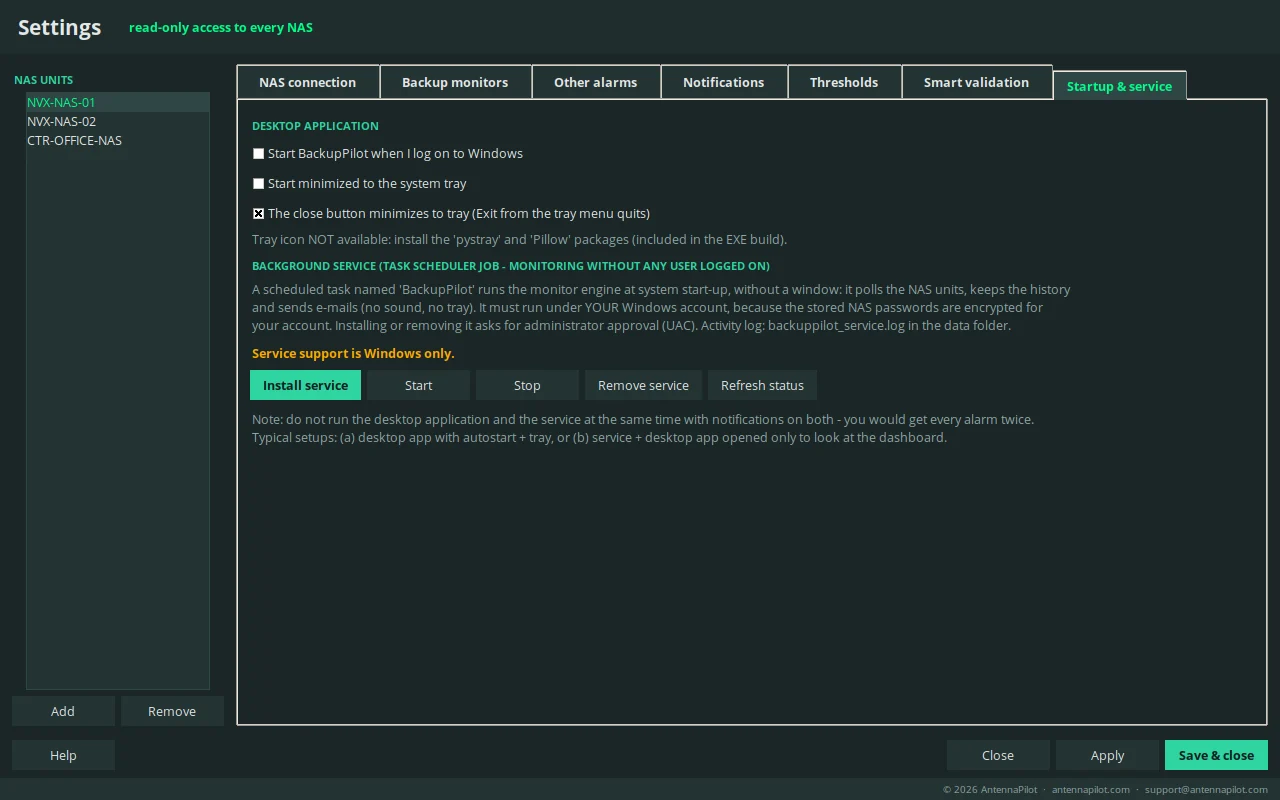
- Desktop application: start with Windows, system tray with balloon notifications.
- Background job: a Windows Task Scheduler job runs the monitor engine without a logged-on user: it polls the NAS units, keeps the history and sends the e-mails.
- Tooltips on every control, built-in illustrated help, a PDF user manual, and a bug report from the Help menu with version, licence state and the last lines of the error log.
Read-only by construction
It cannot change anything on the NAS
- Every call to the DSM API passes through a whitelist of read methods inside the program. Any other method is refused before it is sent. The application cannot start, stop, modify or delete anything on the NAS, whatever the rights of the account.
- The System info tab counts the calls blocked in the session.
- One executable, no agent on the NAS, no cloud, no telemetry. Credentials are stored encrypted with Windows DPAPI. The only outside contact is a small version file on antennapilot.com, once a day, which you can switch off.
Requirements
What you need
| NAS | Synology NAS with DSM 6.2 or 7.x |
| Account | A dedicated monitoring account without 2-step verification. For the full picture it must be a member of “administrators”; a non-admin account still works, and sections it cannot read are marked “restricted”. Watched folders, canary files and content checks need read permission on the folder. |
| Network | The PC must reach the DSM port (5001 HTTPS or 5000 HTTP). A VPN is fine. |
| Windows | Windows 10 or 11. Microsoft Outlook (desktop) only if you choose the Outlook channel. |
| Licence | Per computer, with an activation key. A 24-hour demo with one NAS. |
Limits
What BackupPilot does not do
It does not perform, restore or modify backups, it does not run on the NAS, and it does not monitor other NAS brands. It does not replace the integrity check or the restore test of the backup software: it tells you when a backup stops looking like the previous ones and shows why.
Screenshots show fictional data. © 2026 AntennaPilot · antennapilot.com · support@antennapilot.com
Synology, DiskStation, RackStation, DSM, Hyper Backup, Active Backup for Business, Cloud Sync and Synology Drive are trademarks or registered trademarks of Synology Inc. BackupPilot is an independent product of AntennaPilot and is not affiliated with, endorsed by or sponsored by Synology Inc. All other trademarks are the property of their respective owners.